
How to build and publish an app with Claude Code
Published November 1, 2026 · by NapBuild
Contents
You can build an app with Claude Code yourself: install it, connect a Claude plan, write the app, then build and submit it to the stores. It works, but the stores’ paperwork, the testing and the listing stay on your desk. NapBuild is the other route, and it does not need Claude: it works with the AI you already pay for, whether Claude (through the official Claude Code), ChatGPT (through Codex), Grok or Gemini. It runs the whole cycle for you on that subscription.
This page lays out both routes with the official documentation read on November 1, 2026, and says which fits whom. Claude is one good option among several, not a requirement.
The two routes side by side
| Claude Code, by hand | NapBuild | |
|---|---|---|
| Which AI | Claude. Claude Code needs a Pro, Max, Ultra, Team or Enterprise plan, or a Console account. The free Claude plan does not include it. Other AIs have their own tools, not covered here | The one you already pay for: Claude (Claude Code), ChatGPT (Codex), Grok or Gemini. No Claude account needed |
| What you install | Claude Code, plus the tools of the stack you pick (Expo and EAS, for example) | The NapBuild app on Windows 10 or 11, or a Mac. It connects your AI |
| Who drives the AI | You, prompt by prompt, in a terminal | NapBuild, in ten steps, with decisions asked on your phone |
| Tool price | Claude Pro: $17 a month billed yearly, $20 billed monthly | $24.90 a month, $119 a year or $299 once (as of November 1, 2026), on top of your AI plan |
| Store accounts | Yours: $25 once at Google, $99 a year at Apple | Yours, same fees. NapBuild never creates an account for you |
| Listing, visuals, legal pages | You write and make them | Prepared by NapBuild, for you to review |
| Stores accept the app | The stores decide | The stores decide |
| Best when | You code, or want full control of every file | You want an app in the stores without driving each step |
What you need for the by-hand route
- A Claude plan or a Console account. The Claude Code documentation lists Pro, Max, Ultra, Team, Enterprise or Console. Anthropic’s pricing page shows Pro at $17 a month billed yearly ($200 up front) or $20 billed monthly, Max at $100 a month and Ultra at $200 a month. The free plan has no Claude Code.
- A computer. macOS 13 or later, or Windows 10 (version 1809) or later, with at least 4 GB of RAM and an internet connection.
- A terminal. Claude Code starts from a terminal opened in your project folder. A desktop app also exists if you prefer a window.
- Node.js, only if your stack needs it. The native Claude Code installer does not need Node. The npm install does (Node.js 22 or later). Expo’s tools are installed with npm, so an Expo project does need it.
- A stack that produces store builds. Expo with React Native is a common one, and it is the one this page follows because Expo documents the whole path to the stores. Capacitor and fully native apps are other options.
- Two developer accounts. Google Play: a $25 one-time fee. Apple: $99 per membership year.
The by-hand route, step by step
- Install Claude Code. On Windows, run the PowerShell command from the documentation. On macOS, run the command for your system. Then open a new terminal and check that it prints a version number. On native Windows, Git for Windows is recommended but optional.
- Sign in. Go to your project folder and start Claude Code. It asks you to log in, in your browser, on first use. Depending on the permission mode you choose, it asks for your approval before it changes a file.
- Create the project and describe the app. Claude Code reads your files as needed, so you describe the app in plain words and review each change it proposes. You choose the stack, the screens and the data you keep. The documentation shows examples of small tasks, not a full-app recipe: how well it goes depends on how clearly you describe the app.
- Test it yourself. Run the app on a phone or an emulator and use it as a stranger would. Nothing in the documentation replaces this step.
- Create your store accounts. Google can ask for a government ID and a credit card under your legal name, and does not refund the fee if the information is judged invalid. If your personal Google account was created after November 13, 2023, Google requires a closed test with at least 12 testers opted in for at least 14 days before you can ask for production access.
- Build the app. With Expo, you install EAS CLI, sign in, configure the project, then run the build for Android, iOS or both. EAS Build is available to anyone with an Expo account, including the free plan. We did not check what the free plan’s build quota is. For iOS, Expo states that Apple Developer Program membership is required to build for the App Store.
- Fill in the listing in the store consoles. On Google Play, configure the store listing in the Play Console before you submit. Google limits the app name to 30 characters, the short description to 80 and the full description to 4,000. We did not read the exact visual sizes: check them in each console.
- Submit. EAS Submit uploads the Android bundle to the Play Console and the iOS file to App Store Connect. For Android, EAS needs a Google service account key, an app already created in the Play Console and a production .aab build. For a first submission, the app lands on the internal testing track. On iOS, the build arrives in TestFlight and is not released automatically: you still add the metadata and screenshots and submit for App Review.
- Wait for the stores. Google and Apple review the app and decide. Nobody can promise acceptance, including us.
What is still yours, even with Claude Code
The AI writes code. These stay with you, by hand or with NapBuild’s help:
- Design choices. Claude Code does what you describe. A look that fits your audience is a decision, not a default.
- Testing. You check the app on real devices and decide when it is good enough.
- The listing and the visuals. Words, icon and screenshots in each store’s sizes.
- A privacy policy. Apple’s guidelines require a link to it in the App Store Connect metadata and inside the app. Google asks for a link too, even for an app that collects no data.
- Data declarations. Google’s Data safety form is required for every published app. You declare what the app and its third-party libraries collect, and you are solely responsible for the answers. We offer no legal advice: read both stores’ rules.
- Apple’s review rules. An app that is only a repackaged website, or that copies one already widely available, can be refused. If your app has a login, provide a demo account and keep your backend running during review.
The NapBuild route
NapBuild is built to do this whole cycle. It does not make you pick Claude. You connect the subscription you already have, on your own computer, and NapBuild puts that AI to work. The home page lists four, each shown as building: Claude (official Claude Code), ChatGPT (through Codex), Grok and Gemini.
From one sentence, it follows ten steps: idea, market and competitors, identity, first build, feature-complete, quality, copy, ready to sell, ready to publish and in the stores. Each step is signed off on evidence such as screenshots, verdicts and files, not on the AI’s word. For the stack, it can build a wrapped web app with Capacitor (the default), a React Native and Expo app, or a fully native app.
For the stores, it prepares the signed Android build, the iPhone project, the listing, the visuals in Google and Apple sizes and the data safety form. It submits the app once you approve, if you allowed it. You follow the work and answer decisions from your phone.
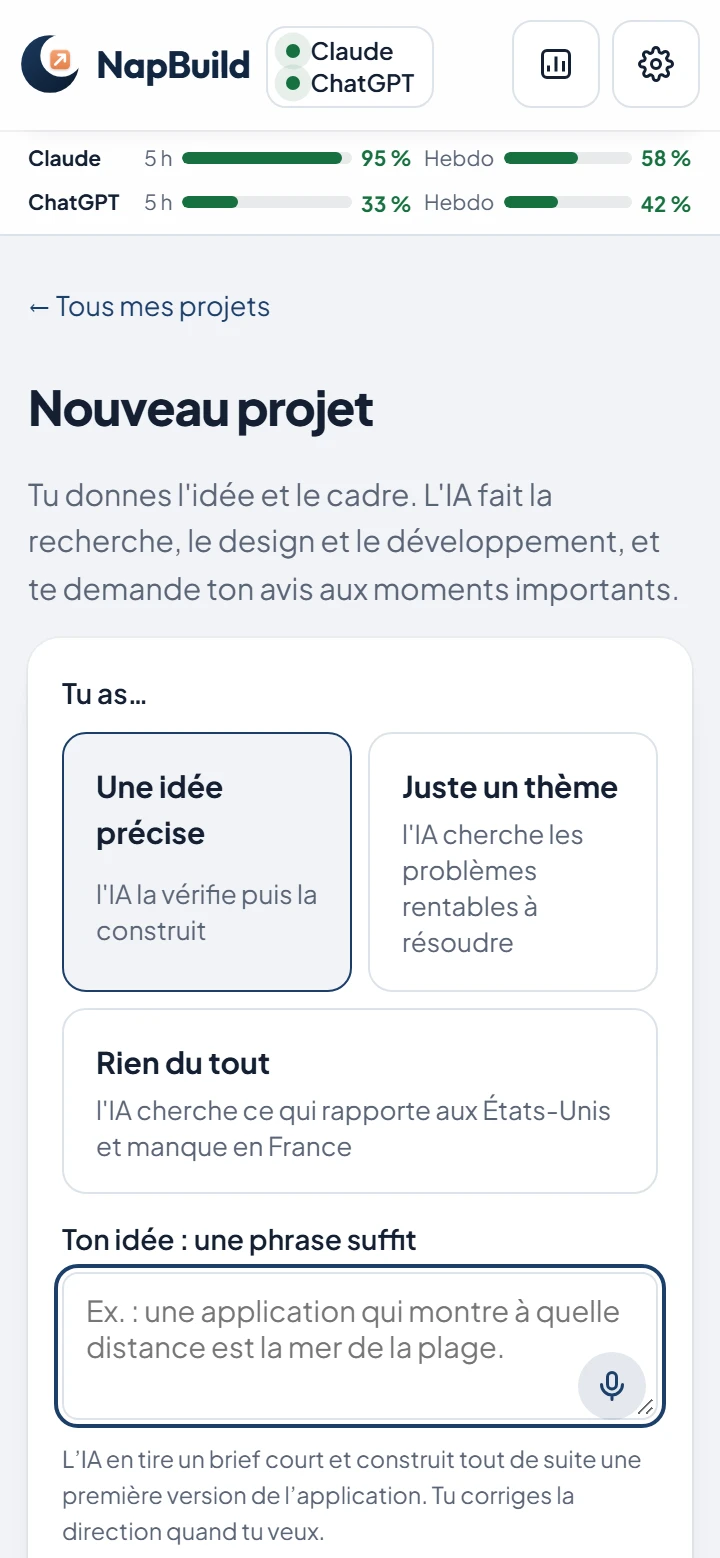
The top bar of the screen above shows, for the connected AI, a gauge for the five-hour window and one for the week. The figures are an example. The detail of the AI side is on AI app builder without credits.
The honest limits of the NapBuild route
- You need an AI subscription first. NapBuild sells no AI credits. Its price comes on top of the AI plan you hold.
- Your AI plan has limits. Anthropic states that Claude and Claude Code share the same limits, with a five-hour window and a weekly limit on Pro and Max. OpenAI says Codex is included in ChatGPT plans, that local messages and cloud chats share the plan’s allowance, and that limits depend on the model and the task. A full app is a long job. We have not measured how much of an entry plan it uses, and neither company publishes a figure per app.
- You need a Windows or Mac computer, switched on while the AI works.
- We checked Claude and ChatGPT pricing for this page. We did not review Grok’s or Gemini’s plans or limits.
- Store rules still apply to you. The Google closed test (12 testers, 14 days) for a new personal account stays. Apple’s building and signing happen on a Mac or in the cloud. The developer accounts are yours. The stores decide.
- Checkout was not open on NapBuild’s home page on November 1, 2026. You can try everything for 48 hours without a card, and steps 1 to 3 stay available without paying.
Which one should you choose?
Solo founder with an idea and no code
If you already pay for Claude, ChatGPT, Grok or Gemini, NapBuild takes the idea to the stores on that subscription, and you keep the decisions. If you only want a web prototype in a few minutes, a browser builder is simpler. See the best AI app builders for iOS and Android.
Non-developer with a budget
The by-hand route is realistic only if you accept learning a terminal, a stack and two store consoles. If you would rather not, NapBuild is the route that drives the steps. Plan for two bills: the tool and your AI plan. Prices are on the pricing section.
Freelancer or agency
If you or your team code, and want to choose each file and library, Claude Code by hand fits well, and so does any AI coding tool you prefer. NapBuild suits you if you deliver several apps and want the same checks, listing and store kit each time. We have no figure for the AI usage of several projects: test it in the 48 hours.
Questions
Do I need Claude to use NapBuild?
No. NapBuild works with the AI you already pay for: Claude (through the official Claude Code), ChatGPT (through Codex), Grok or Gemini. You connect one, on your own computer. Claude is one option, not a requirement.
Can I build an app with Claude Code for free?
Not with the free Claude plan: Anthropic’s pricing page marks Claude Code as not included there, and the setup page says a Pro, Max, Ultra, Team, Enterprise or Console account is required. OpenAI says Codex is included in ChatGPT Free, but we did not test building a full app on it.
Can Claude Code publish my app to the stores by itself?
Not alone. Claude Code writes and edits code in your project. Building, signing and submitting go through tools such as EAS and the store consoles, and your accounts, listing and answers to the stores are yours. Nothing in the documentation we read describes an automatic publish.
How much does it cost to publish an app?
The fixed fees we found: $25 once for a Google Play developer account, $99 per membership year for Apple, and your AI plan (Claude Pro is $17 to $20 a month). NapBuild adds $24.90 a month, $119 a year or $299 once, as of November 1, 2026. No company publishes a total cost per app, so we give none.
Does NapBuild guarantee that Google Play or the App Store accepts my app?
No. NapBuild prepares and submits the app, and the stores decide.
Take a nap. Build an app. NapBuild researches the market, designs, codes, tests, writes the store listing and ships your app, on your own AI subscription. Try it free for 48 hours.
See how NapBuild worksSources
- Advanced setup (system requirements, install, accounts)Anthropic (Claude Code documentation) · read November 1, 2026
- QuickstartAnthropic (Claude Code documentation) · read November 1, 2026
- Plans and pricingAnthropic (Claude) · read November 1, 2026
- Using Claude Code with your Pro or Max planAnthropic (help center) · read November 1, 2026
- Set up EAS BuildExpo (documentation) · read November 1, 2026
- EAS SubmitExpo (documentation) · read November 1, 2026
- Submit to the Google Play StoreExpo (documentation) · read November 1, 2026
- Create and set up your developer accountGoogle Play Console Help · read November 1, 2026
- App testing requirements for new personal developer accountsGoogle Play Console Help · read November 1, 2026
- Provide information for Google Play’s Data safety sectionGoogle Play Console Help · read November 1, 2026
- Create and set up your app (store listing)Google Play Console Help · read November 1, 2026
- Apple Developer Program: what’s includedApple · read November 1, 2026
- App Review GuidelinesApple · read November 1, 2026
- Codex pricing and usage limitsOpenAI · read November 1, 2026
Written by NapBuild with help from AI, from the sources above, read on the dates shown. NapBuild is one of the products compared: we are not neutral, so every competitor fact links to its official page.